Import Your Gmail Archive
Importing your Gmail archive lets you seed Pulse with years of newsletter history in one step, rather than waiting weeks for forwarding to accumulate.
Before you start — set up the pulse_newsletter label
Section titled “Before you start — set up the pulse_newsletter label”Google Takeout can export a single Gmail label as an MBOX file. By targeting only pulse_newsletter, you get a clean newsletter-only archive instead of your entire mailbox.
If you haven’t created the label and filter yet, follow Option 1 in Add Your First Source to set up the Gmail filter. When creating the filter, check Also apply filter to matching conversations — this retroactively tags all your existing newsletters so they’ll be included in the Takeout export.
If you’d prefer to export all mail and let Pulse filter it, you can skip this step — just leave the label selection at the default (“All Mail”) in Step 1 below.
Step 1 — Export from Google Takeout
Section titled “Step 1 — Export from Google Takeout”-
Go to takeout.google.com
-
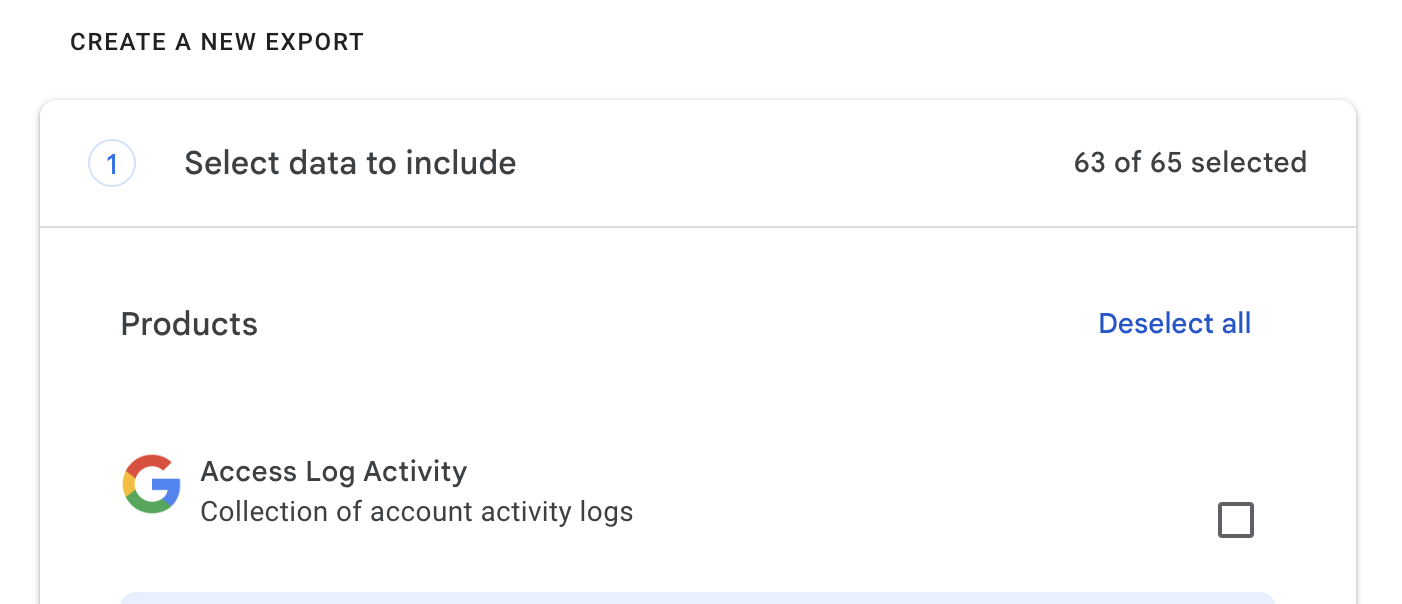
Click Deselect all — you only need Mail for this export.
-
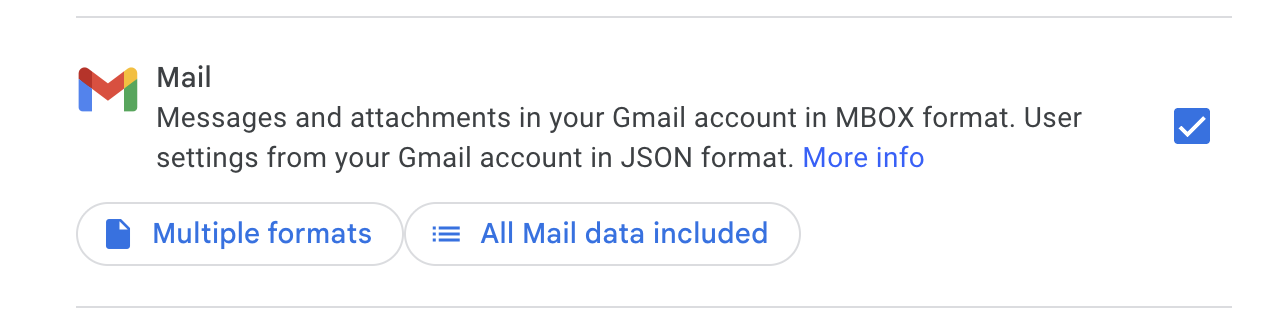
Scroll down to Mail and check it.
-
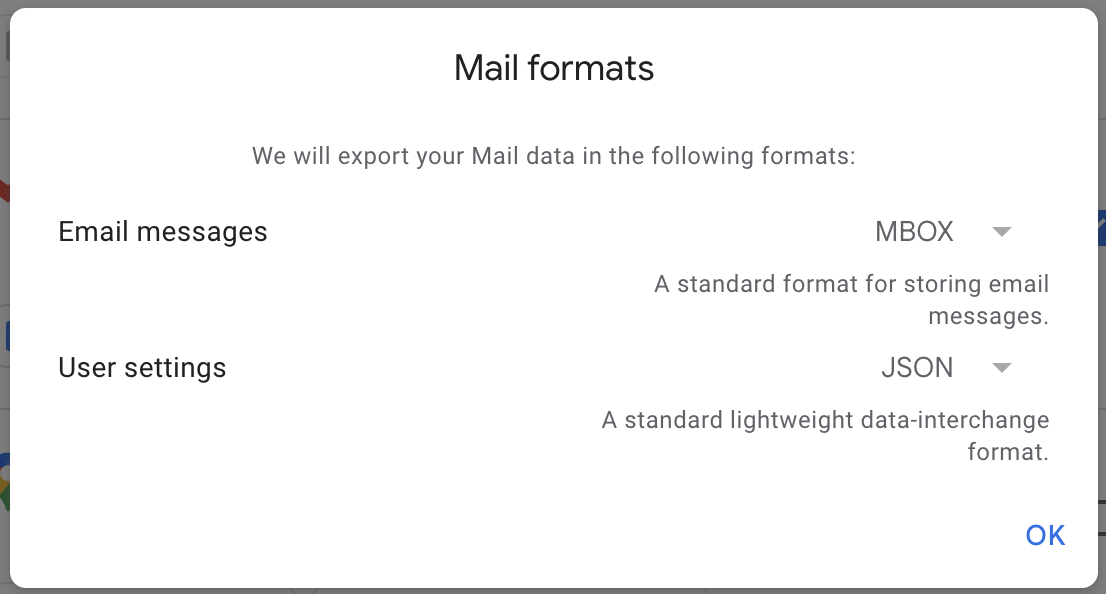
(Optional) Click Multiple formats to confirm that email messages will export as MBOX — this is the default and doesn’t need to be changed.
-
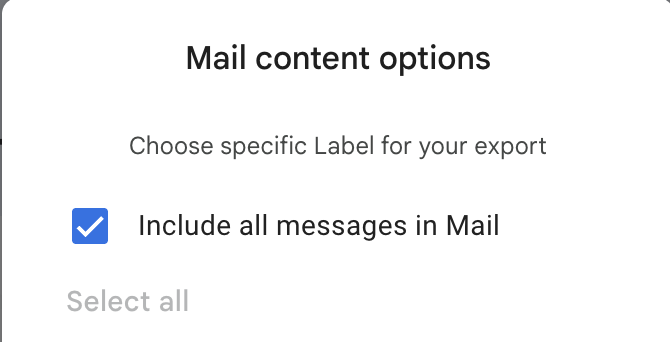
Click All Mail data included to open the label selection options.
-
Uncheck Include all messages in Mail, then check pulse_newsletter.
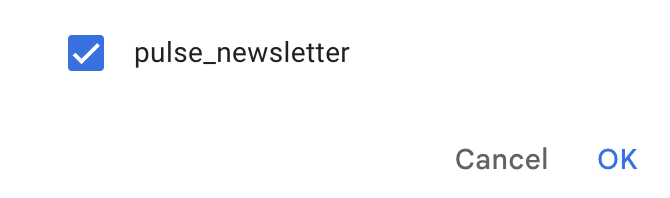
-
Click OK. The Mail row now shows “1 label selected”.
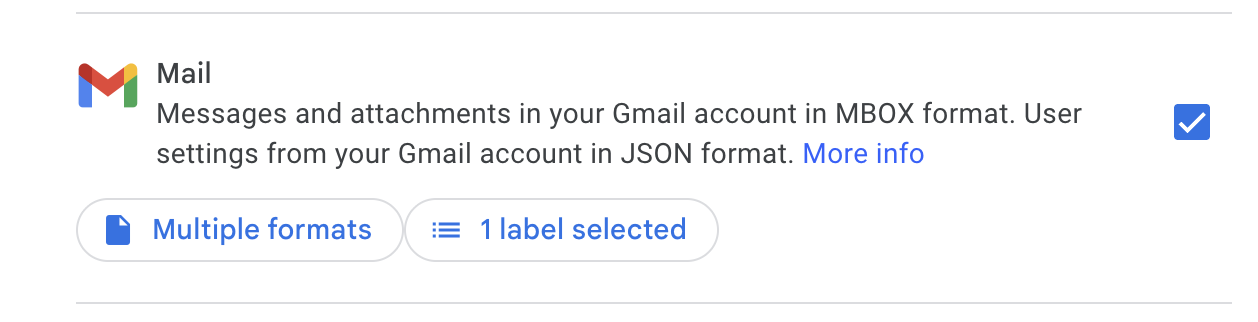
-
Click Next step.

Step 2 — Configure the export
Section titled “Step 2 — Configure the export”Leave Frequency as Export once, File type as .zip, and size as 2 GB.
-
Click Create export.
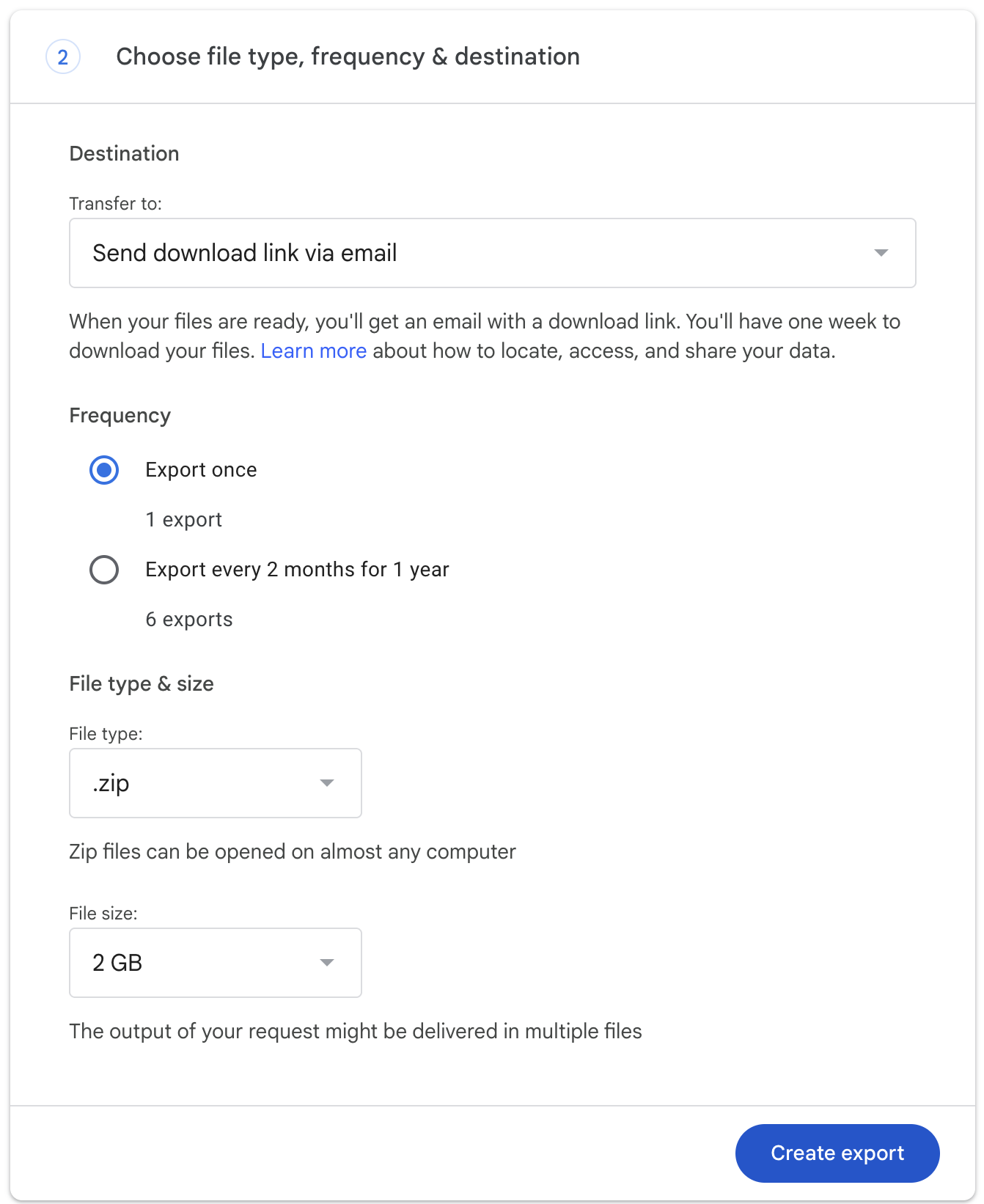
-
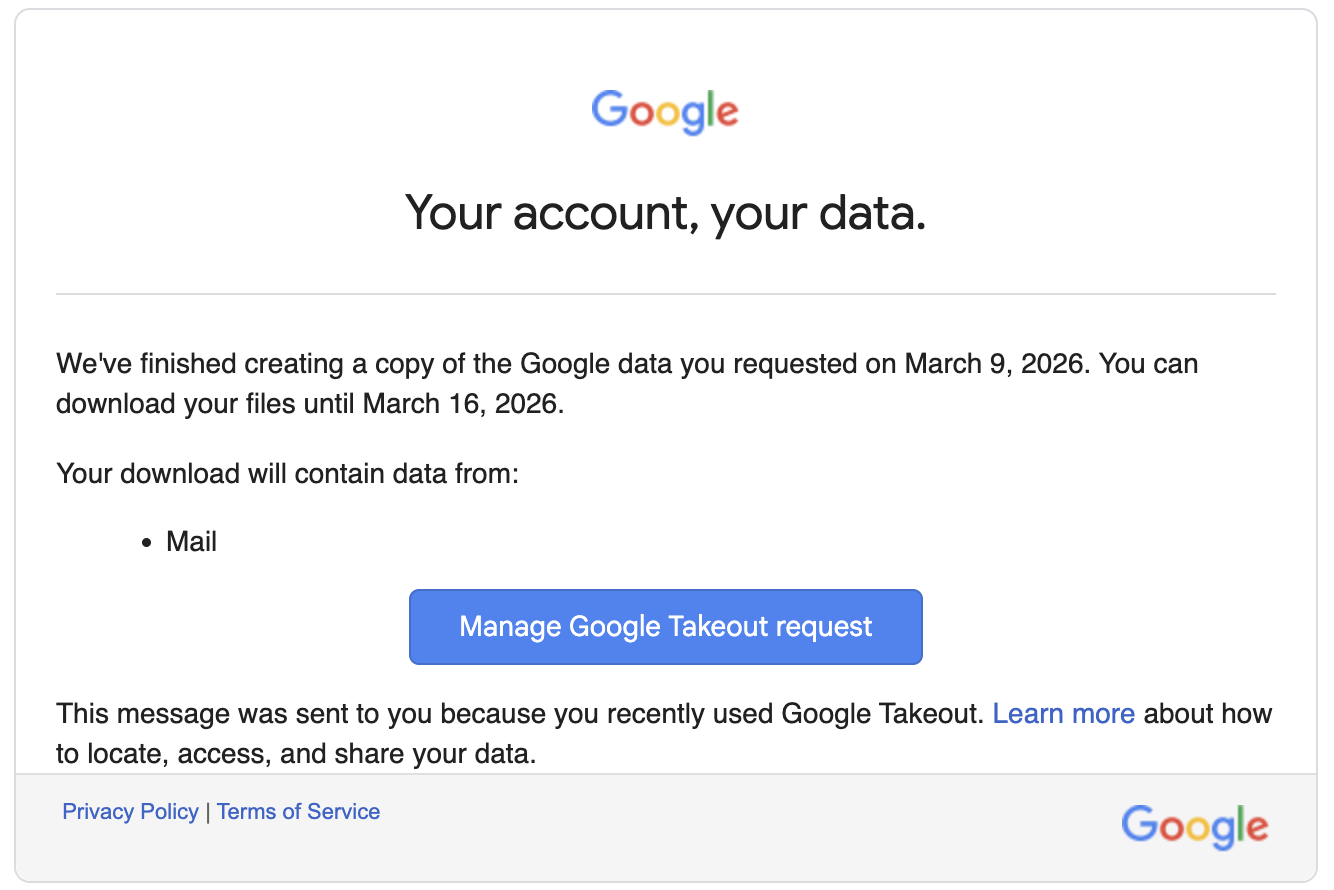
Google will email you when the archive is ready. Small archives (under ~1,000 emails) typically finish within a few minutes; larger ones can take several hours.
Step 3 — Upload to Pulse
Section titled “Step 3 — Upload to Pulse”-
Open the email from Google and click the download link. Save the
.zipto your computer. -
Extract the
.zip— inside, find a file named something likeTakeout/Mail/pulse_newsletter.mbox. -
In Pulse, go to Settings → Import archive.
-
Choose the
.mboxfile and click Upload.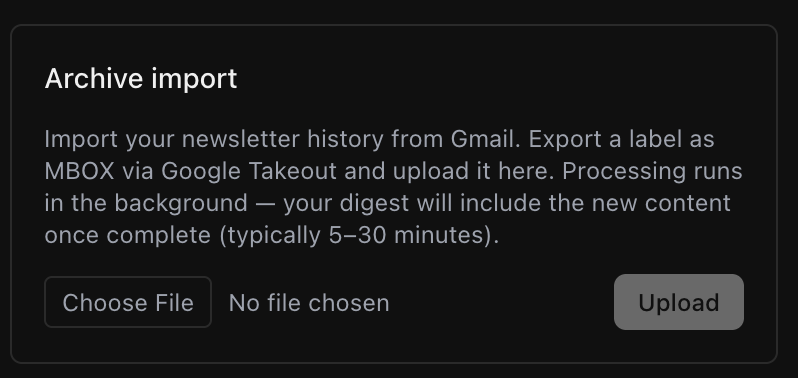
-
Processing runs in the background — you can close the tab once the upload is confirmed. Your next digest will include the imported content.
Next steps
Section titled “Next steps”- Add Your First Source — set up auto-forwarding so new newsletters arrive automatically
- Settings — manage your ingest preferences and persona config